
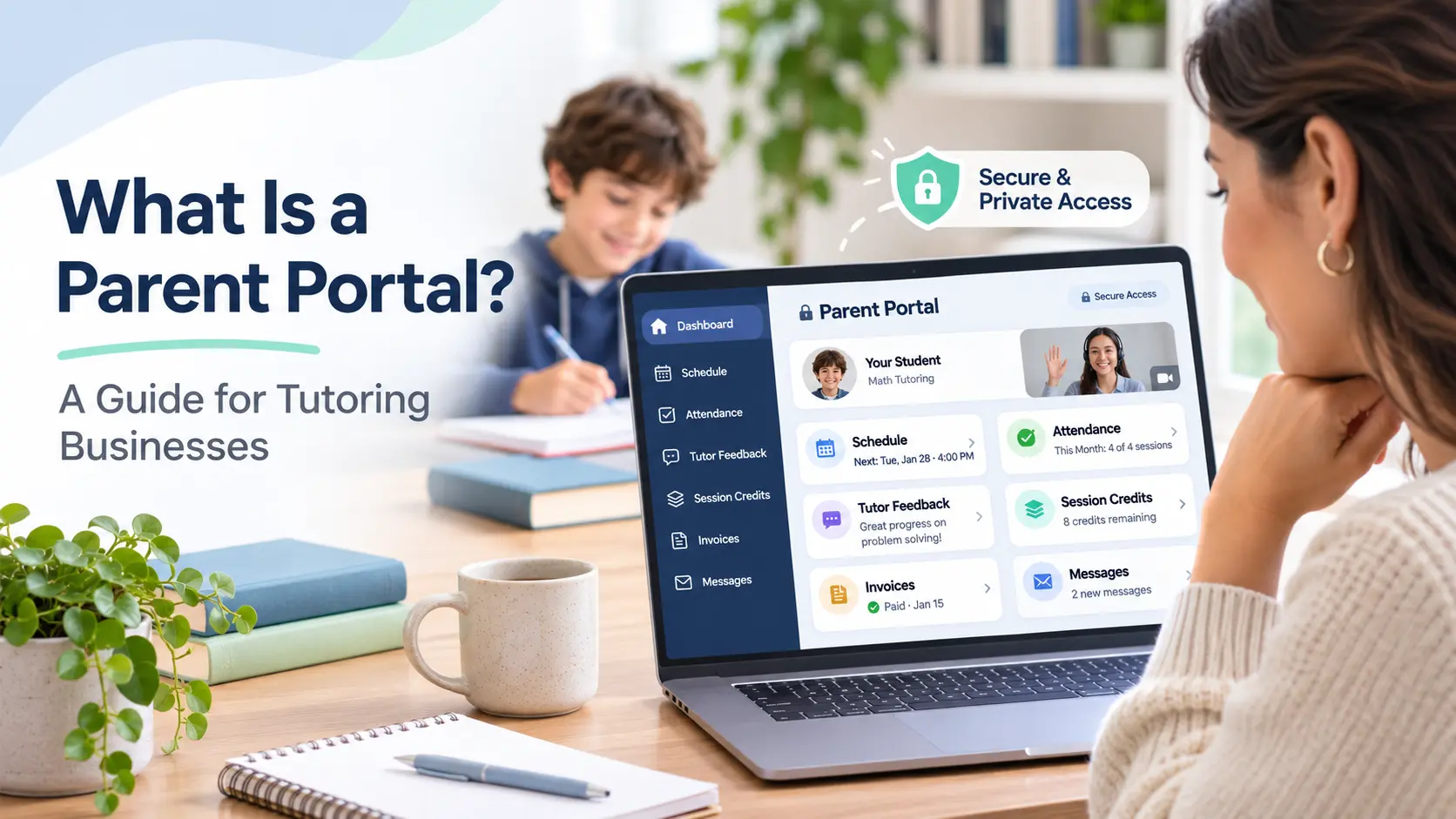
A parent portal is a secure online platform where a parent or guardian can view information about their child’s tutoring. This usually includes the schedule, attendance, tutor feedback, session credits, invoices and messages.
The portal does not hold separate data. It displays the records your tutors and administrators already use, so everyone sees the same information.
This guide covers what to include, how to manage login and access, and how to introduce the portal to families. You can also see Wise pricing and book a demo to review how Wise approaches it.
What Is a Parent Portal?
Each guardian has a personal login. The system then shows only the students linked to that account.
Parents are used to this level of access from schools. In the NCES Parent and Family Involvement survey, 90 percent of K to 12 students had parents who reported receiving school-wide newsletters, memos, emails or notices. Tutoring families bring the same expectation to private lessons.
Parent Portal vs Student Portal
Both portals draw on the same records. The difference is what each user can see and do.
| Student account | Parent account | |
| Main purpose | Attend classes and access materials | Monitor progress and manage payments |
| Can join sessions | Yes | Not usually |
| Can view fees | Depends on settings | Usually, with payment options |
| Can view tutor feedback | Yes | Yes, if you allow it |
| Can view private tutor notes | No | No |
What Is a Parent Portal for Tutoring?
A parent portal for tutoring centers on five types of information:
| Information | Where it comes from | What parents should see | What to review first |
| Schedule | Calendar and bookings | Upcoming and past sessions | Tutor availability |
| Attendance | Session records | Present, absent or late | Internal reasons for changes |
| Credits | Credit balance | Remaining and used sessions | Tutor payout rates |
| Invoices | Billing records | Amount, status and history | Discounts given to other families |
| Feedback and chat | Tutor entries | Topics covered and comments | Private tutor notes |
Parent Portal Features to Look For
Use this checklist to judge how a tool performs once you have many families.
- One parent login can be linked to several children
- Two guardians can be linked to one child, each with a separate login
- The person who pays and the person who views can be different
- Visibility can be controlled for each type of information
- AI-generated reports go through human approval before sending
- Credit balances update when attendance or feedback is recorded
- Access can be removed quickly when a family leaves
Benefits of a Parent Portal
The benefits of a parent portal become clear when you measure them. Record these three figures for one month before launch.
- Repeat questions per week. Count messages asking about schedules, balances or class links.
- Days to payment. Measure the time between invoice date and payment date.
- Missed sessions. Count no-shows for every 100 sessions booked.
Compare them after eight weeks. If parents do not use the portal, the numbers will not change.
There are also limitations to consider:
- Parents used to messaging may continue to do so. Set a clear rule for which channel to use.
- If you teach only three or four students and speak to parents daily, the setup effort may not be worthwhile yet.
Our guide on signs you have outgrown manual scheduling can help you judge when the change makes sense.
How Parent Portal Login Works
Parent portal login is mainly about identity. Each adult must see only their own child’s information.
Most platforms follow this process:
- An administrator creates the student record and adds the guardian’s email.
- The system sends an invitation to that email address.
- The guardian confirms their identity with a link, a one-time code or a PIN.
- The account opens a dashboard showing only the linked children.
- Later logins use the same method, or a password if the platform supports one.
Some situations need planning in advance:
- Shared email addresses. If a parent and child share an email, the system cannot separate their roles. Ask for different emails.
- Siblings. Link all children to a single guardian record instead of creating duplicates.
- Students turning 18. Decide whether the parent keeps access after that point.
Wise documents the student side of this process. An administrator adds the student, who receives an email with a Get Started button. The student can also log in with a one-time code valid for 5 minutes, or with a fixed PIN set by the administrator. Gmail users can sign in with Google.
Parent Portal for Online Tutoring
A parent portal for online tutoring must show that sessions took place, because parents cannot observe the lesson. Three elements support this.
- Evidence of each session. Attendance, duration and a short summary show that the class happened.
- Correct time zones. Store each session in one time zone and display it in the viewer’s local time. Time-zone confusion is a common cause of missed classes.
- Reminders at several points. One reminder is rarely enough. Wise documents examples at 36 hours, 24 hours, 60 minutes and 10 minutes before class. These go by email and app, and some institutes also use text or WhatsApp. Your institute sets the final schedule. Read more about automated session reminders.
Parent Portal vs WhatsApp and Email
A portal does not replace messaging. Each channel suits a different kind of message.
| Message type | Best channel | Reason |
| Schedule, balance or invoice | Portal | One reliable source |
| Session summary | Portal and email | Searchable record |
| Urgent change on the same day | WhatsApp or text | Fast attention |
| Concern about progress | Phone call or scheduled chat | Needs discussion |
How the Wise Parent Portal Works
Wise lists a separate student and parent portal on its pricing page. The steps below follow the documented path of one session.
- Reminder. Wise sends reminders on the schedule your institute has set.
- Class. Afterwards, the student sees a recap and a recording if the class was recorded.
- Feedback. The tutor submits feedback along with the sessions consumed. Credits are deducted from the student’s balance. On pay-as-you-go billing, the figure is used to calculate the charge.
- Parent email. If your institute enables it, an automatic email goes to the student or parent. It includes the tutor’s Topics Covered and Comments.
- Balance and invoices. The Fees page shows what has been paid and what is owed for each course. The parent portal lists courses, invoices and payments, and a parent can pay several invoices at once.
- Review. A parent can log in to the child’s account to see sessions, materials and tutor feedback. A linked parent account can usually see and reply in the same chat.
- Reports. AI progress reports are drafted from session summaries and feedback. An administrator reviews them before they reach a student or parent. Your institute must enable this module.
Credits change when feedback is submitted, so set a feedback deadline for tutors. The Wise settings guide explains the recommended setup order.
Wise supports one-on-one tutoring software setups, and its tutor scheduling software keeps bookings and calendars aligned. You can book a Wise demo to see the parent view.
How to Roll Out a Parent Portal and Protect Privacy
Introduce the portal in stages, starting with a small group.
- Correct your data. Remove duplicate parents and fix wrong emails and credit balances.
- Set visibility. Use the tables above.
- Test with five families. Include one family with siblings and one with separated parents.
- Review the three figures. Compare them with your starting numbers.
- Invite everyone else. Do this at the start of a term, with the channel guidance in your welcome message.
Privacy and Children’s Data
Many students are minors. The FTC explains that COPPA protects children under 13. Operators generally need parental consent before collecting a child’s personal information, and parents can review or delete it.
The Department of Education states that FERPA applies to institutions receiving certain federal funds. Many private tutors may not be covered, but careful record-keeping is still good practice. This is not legal advice, so consult a lawyer about your local rules.
Clear access rules also make scaling tutoring operations simpler as you add tutors.
FAQs
Are my personal contact details visible in chat?
Wise says your personal information isn’t visible to the people you chat with. Confirm with your account manager which details this covers.
What if the parents are separated?
Ask which guardian should have access and record the answer in writing. If a court order or custody document limits one parent’s rights, follow it. A lawyer can advise on local rules.
How long do recordings stay available?
This depends on your storage settings. Wise states that recordings in archived courses are deleted within 48 hours. You can also set recordings to delete automatically after a chosen number of days, and recordings left unshared for 7 days or more are deleted.
How much does a parent portal cost?
Pricing varies by platform. Some include it in the plan, and others charge per student. Review the vendor’s pricing page and ask what is included before you decide.