Google Calendar not syncing almost always traces back to four things: no internet, sync switched off, a hidden calendar, or events saved to the wrong account. Check them in that order, and most phones recover in minutes.
For tutors, this is more than an annoyance. A booking that never reaches your phone becomes a missed session. A slot that looks free gets booked twice. If you run tutor scheduling out of Google Calendar, it has to be right every time.
This guide shows how to sync a Google Calendar on Android and iPhone, on phones and tablets. Then it covers fixes for each platform. Last, it explains how two-way sync works in Wise, so bookings and availability stay matched without manual checks.
How to Sync a Google Calendar on Android Phone and Tablet
When you sync on a phone or tablet, the same events show up on your computer, as Google’s sync guide explains. Phones and tablets follow the same steps, so you only need to learn them once.
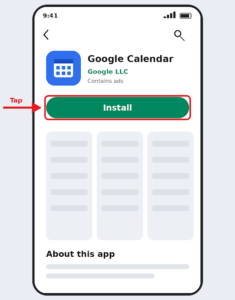
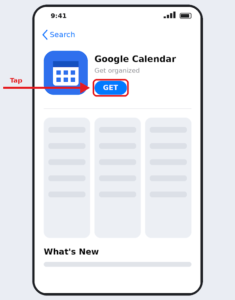
- Open Google Play and install the Google Calendar app.
- Open the app. Your events sync with your computer calendar.

- Cannot find the app in Google Play? Your Android version may be too old. Open calendar.google.com in your mobile browser instead.
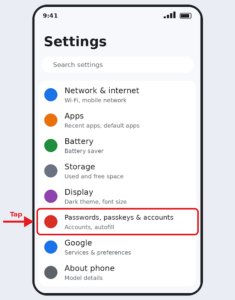
- Check account sync. Open Settings, tap Passwords, passkeys & accounts, and select your Google account.
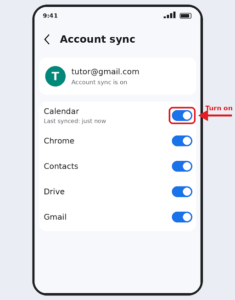
- Tap Account sync and switch Calendar on.
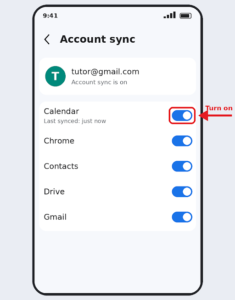
Menu names vary by phone brand. Some of these steps require Android 9.0 or later.
How to Sync Calendars on iPhone and iPad
You have two options. Pick one for daily use.
Option 1: Google Calendar app
- Install Google Calendar from the App Store.
- Sign in with your Google account. Your events sync automatically.
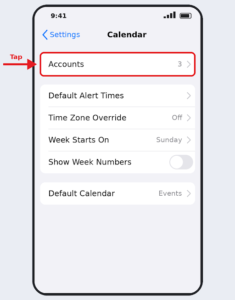
Option 2: Apple Calendar app
- Open Settings, tap Calendar, then Accounts.
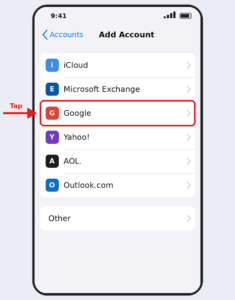
- Tap Add Account, then Google.
- Sign in and switch Calendars on.
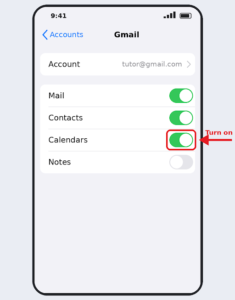
Google also publishes a help page on adding Google Calendar events to Apple Calendar. The two apps keep separate settings. A calendar can show in one and stay hidden in the other.
Google Calendar Not Syncing on Android? Try These Fixes
Run a quick test first. Open calendar.google.com on a laptop. If the event is there, your account is fine, and the phone is the problem. If it is missing, the event was saved somewhere else.
Work through these in order, based on Google’s sync troubleshooting guide.
- Check your connection. Turn on Wi-Fi or data, switch off airplane mode, and load any web page.
- Update the app. Open Google Play and update Google Calendar.
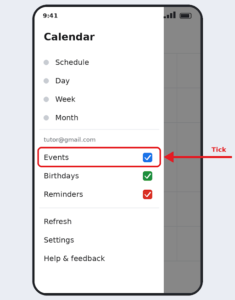
- Make the calendar visible. Tap Menu and tick the box beside the calendar’s name.
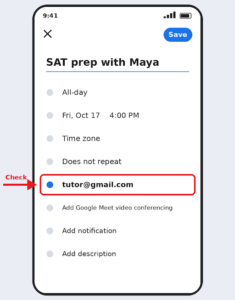
- Check where new events go. Tap Create and look at the calendar name at the top. It must belong to your Google account. A lesson saved to a phone-only calendar will never reach your laptop.
- Turn on account sync. Go to Settings, Passwords, passkeys & accounts, your Google account, Account sync. Make sure Calendar is on.
- Turn on each calendar’s Sync toggle. In the app, tap Menu, then Settings, and pick the calendar. Tap Show more if it is hidden. Your primary calendar has no toggle. It appears as Events unless you renamed it.
- Refresh by hand. Tap Menu, then Refresh.
- Check Calendar storage. Go to Settings, Apps, See all apps, More, Show system, then Calendar storage. Make sure it is on.
- Free up device space. A full device stops Calendar from syncing. Delete unused apps, photos, or files.
- As a last resort, clear app data. Go to Settings, Apps, See all apps, Calendar, Storage & cache, Clear storage, Delete. Then restart. Unsynced events are lost, so confirm they exist on your laptop first.
Google Calendar Not Syncing on iPhone or iPad? Try These Fixes
Start with the same four checks as Android: internet, app update, calendar visibility, and the account that new events go to. Then continue with the steps below, based on Google’s iPhone and iPad guide.
- Quit and reopen the app. Swipe it away, then reopen it.
- Remove and re-add your account. In the Google Calendar app, tap your profile photo. Tap Manage accounts on this device, then Remove from this device, then Remove. Reopen the app and sign in again.
- Uninstall and reinstall. Delete the app, then reinstall it from the App Store.
- Using Apple Calendar instead? Open Settings, tap Calendar, then Accounts, and select your Gmail account. Make sure Calendars is on. Inside Apple Calendar, tap Calendars at the bottom and tick your Gmail calendars.
Common Sync Problems at a Glance
Use this table to match what you see with the likely cause. It saves time when a student is waiting.
| What you see | Likely cause | Fix |
| Event on laptop, missing on phone | Calendar hidden or account sync off | Tick the calendar, turn on Account sync |
| Event on phone, missing on laptop | Saved to a calendar outside your Google account | Recreate it under your Google account |
| Nothing updates at all | Offline or full storage | Check your connection, free up space |
| Works on phone, wrong on tablet | Settings are set per device | Repeat the steps on the tablet |
| Old events missing | The app syncs one year back only | Open calendar.google.com |
How to Sync Two-Way Google Calendar on Wise
Fixing your phone solves one half of the problem. The other half is keeping your booking system and calendar matched. Two-way Google Calendar sync in Wise does this in both directions. Edits flow either way, so you can use whichever app is closest.
How to Sync Two-Way Google Calendar on Wise
Here is how to set it up.
- Click Connect Calendar in Wise.
- Choose your Google account.
- Give Wise permission to view, add, and edit calendar events.
- Once linked, your availability syncs with the Wise portal in real time. Students only see slots when you are truly free.
Then test it the way the demo does.
- Find a slot the portal shows as available, such as 10 a.m. on the 26th.
- Block that time in your Google Calendar.
- Open the student view. The slot now shows as unavailable for booking.
- Book a session as a student. It automatically appears on your Google Calendar.
You can read more about automated session reminders. The same sync powers one-on-one tutoring software setups, where each tutor keeps a separate availability.
If a Wise session is missing from your phone, check Google Calendar on a laptop. If the session is there, the problem is your phone, so use the fixes above. If it is missing everywhere, contact your Wise account manager.
Checklist: Keep Your Google Calendar Synced
- Google Calendar app updated
- Account sync on for Calendar
- Every tutoring calendar ticked as visible
- New events default to your Google account
- Free storage left on your device
- A test booking placed after any phone or tablet change
- The same checks repeated on every device you teach from
FAQs
How long do events take to show after I turn sync on?
Google says events can take some time to appear after you switch sync on. On Android, tap Menu, then Refresh. On iPhone, quit and reopen the app. If nothing appears after a while, work through the fixes above.
Why can I not see events older than a year?
The Calendar app only syncs events from one past year. For anything older, sign in at calendar.google.com on a computer. This is how the app works, not a sign that sync is broken.
Can I use Google Calendar without the app?
Yes. Open calendar.google.com in a mobile browser. You can also use another calendar app that lets you add a Google account in its settings.
Can I sync Google Calendar with Outlook?
If you use Google Calendar through work, school, or another organization, Google recommends Google Workspace Sync for Microsoft Outlook. Check with your administrator first, since your organization decides what is allowed.
If my phone is fixed, do I need to fix my tablet too?
Yes. Google tells you to follow the steps on the device where events are missing. Settings are kept per device, so check each one.
Stop Fixing Sync Problems by Hand
A synced calendar is the base of a reliable tutoring schedule. Once it works, the next step is automating the rest: bookings, reminders, attendance, and billing. Our guide on scaling tutoring operations shows what that looks like in practice.
Ready to see two-way sync in action? Check Wise pricing and book a demo.