 Wise Help Center
If you plan to collect fees or automate payment collection through Wise, connecting a payment gateway is a foundational setup task, worth doing before you launch rather than after your first invoice is already due. Once connected, payments settle straight into your own account with no platform transaction fee taken by Wise.
1. The full list of supported gateways
Twelve gateways are supported: Stripe, Mollie, PayPal, Razorpay, 2C2P, Centz, PhonePe, CardCom, Asaas, Paystack, PayU, and Ziina. Between them they cover most regions directly, so it's worth checking this list for your own country or the countries your learners are in before assuming you need a workaround.
2. Which gateway fits which region
Not all twelve are generalists. Several are built for a specific country or region, so if your learners are concentrated in one place, start with the gateway built for it rather than reaching for a global default:
- Razorpay, PhonePe, and PayU — India.
- CardCom — Israel.
- Asaas — Brazil.
- Ziina — UAE and the wider Gulf.
- Paystack — Africa, strongest in Nigeria, Ghana, South Africa, and Kenya.
- 2C2P — Southeast Asia: Indonesia, Malaysia, the Philippines, Singapore, Thailand, and Vietnam.
- Mollie — Europe, with coverage across the full EEA.
Stripe and PayPal are the two broadest options here, with the widest global reach of the twelve, so they're a solid default if your learners aren't concentrated in one of the regions above. If you teach across more than one of these regions, point 3 below covers connecting more than one gateway, or more than one account of the same gateway, at once.
3. Connecting more than one gateway, or more than one account of the same gateway
You're not limited to a single connection. You can connect several different gateways at once, letting a learner or parent pick whichever one they prefer at checkout. You can also connect the same gateway more than once under different accounts, which matters if you teach across more than one geography: for example, a Stripe account registered in the UK for your UK students, and a separate Stripe account registered in the US for your US students, connected side by side. Each connection is independent, with its own credentials and its own optional display name.
4. How to connect a gateway
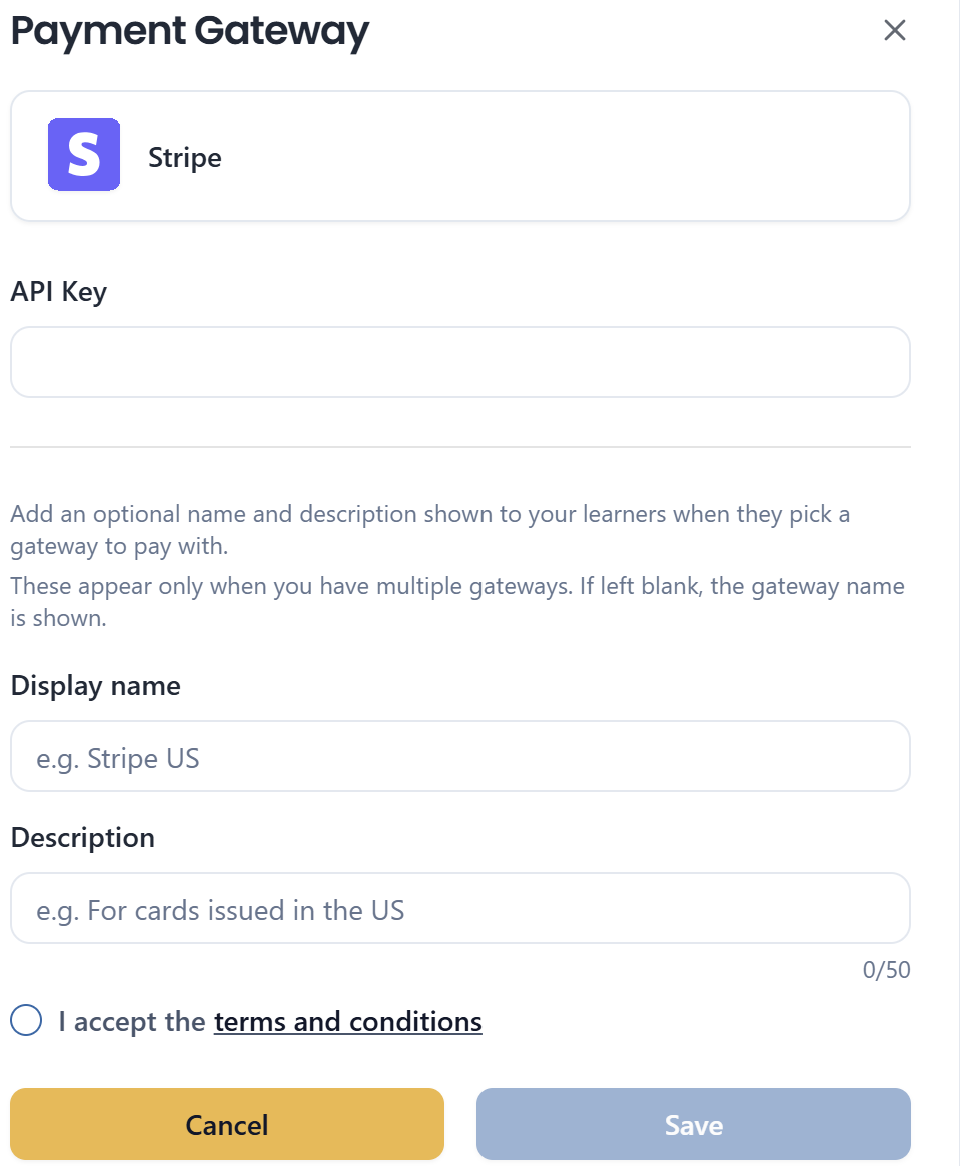
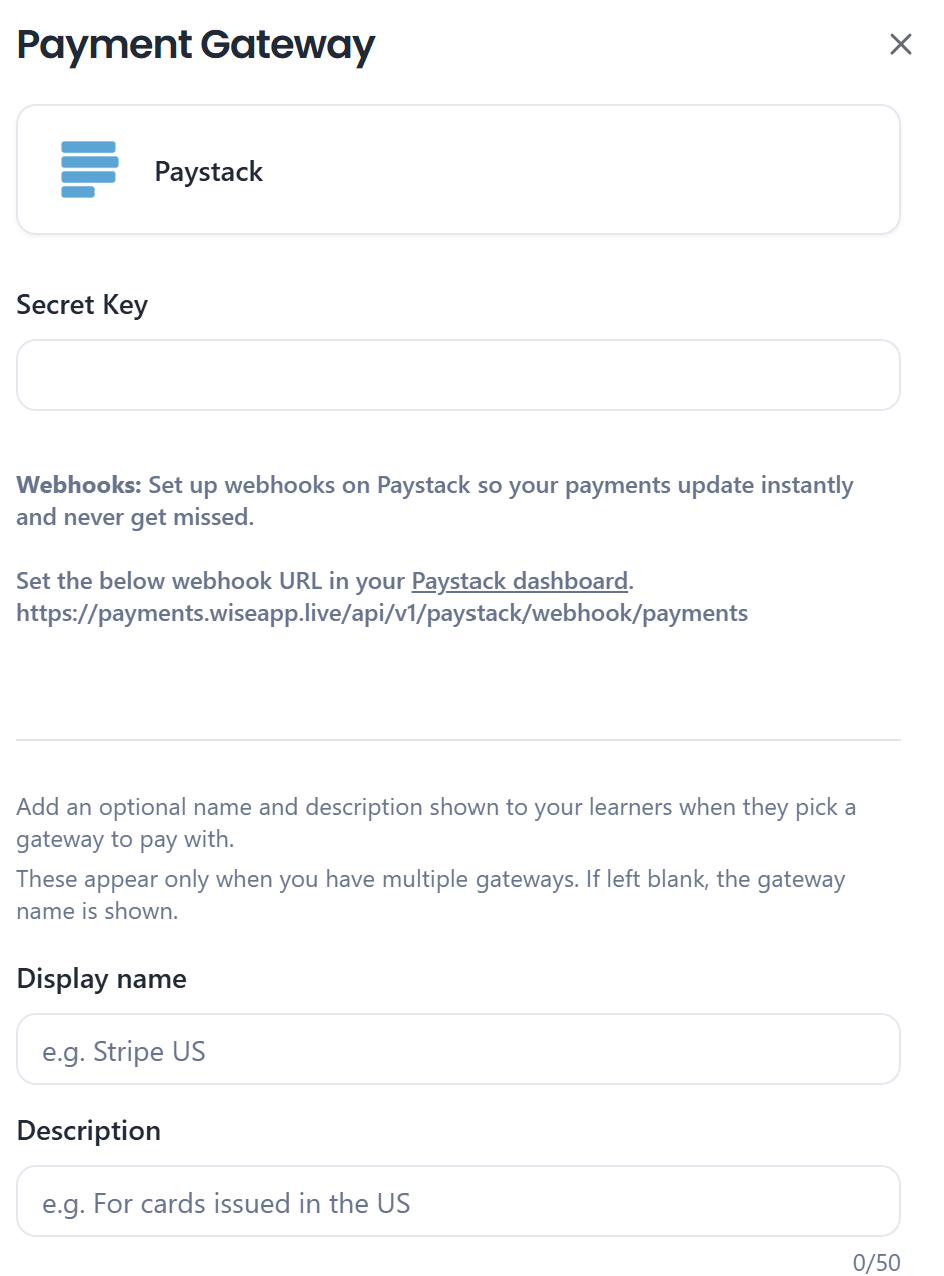
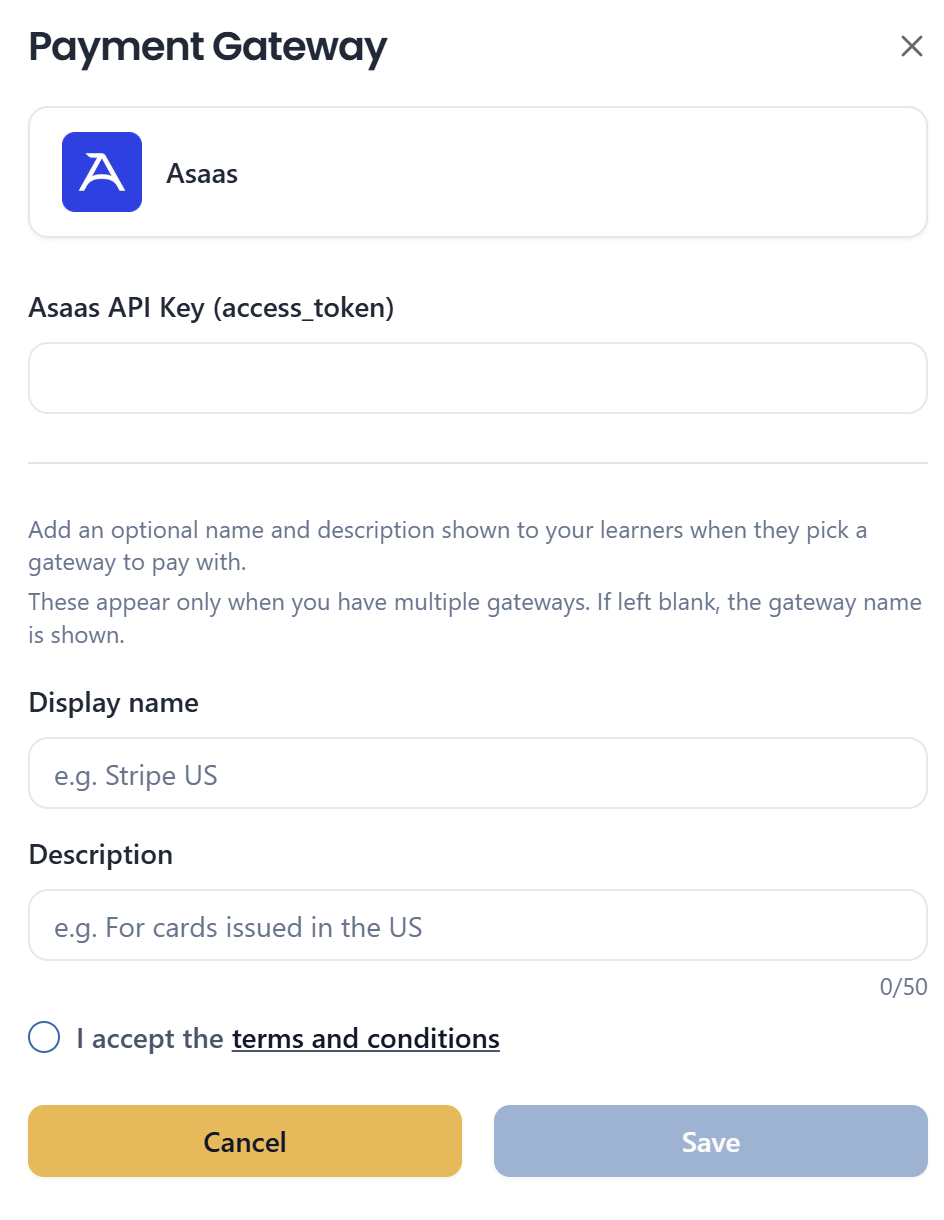
From Settings → Payments → Payment Gateway, pick a gateway tile to open its connection form. The fields differ by gateway, since each one authenticates differently:
- Stripe — just an API Key.
- Paystack — a Secret Key, plus a webhook URL that Wise generates for you (e.g.
https://payments.wiseapp.live/api/v1/paystack/webhook/payments), which you copy into your own Paystack dashboard so payment updates arrive instantly instead of relying on polling. - Asaas — an API Key, labeled in Asaas's own terms as an
access_token.
Other gateways follow the same pattern: whatever key or token that gateway's own dashboard calls its API credential is what you paste in here. If a gateway's form shows webhook setup instructions like Paystack's, follow them. It's what keeps your payment statuses in Wise in sync in real time.
5. Display name and description
Every gateway's connection form also has optional Display name and Description fields, shown to your learners when they pick a gateway to pay with. These only appear once you have more than one gateway connected; with just one, learners never need to choose, so nothing is shown. Leave either blank and the gateway's own name is shown instead. This is exactly what makes the Stripe-UK-plus-Stripe-US setup from point 3 usable: without a display name, a learner choosing between two connections both labeled "Stripe" would have no way to tell which one is meant for them, so set the display name to something like "Stripe UK" and "Stripe US," with a description such as "For cards issued in the UK" and "For cards issued in the US."
6. Accepting terms and saving
Each connection form has a required "I accept the terms and conditions" checkbox; Save stays disabled until it's checked.